> For the complete documentation index, see [llms.txt](https://gopet-ai.gitbook.io/help/llms.txt). Markdown versions of documentation pages are available by appending `.md` to page URLs; this page is available as [Markdown](https://gopet-ai.gitbook.io/help/pet-boarding-module/multi-day-daycare-scheduling.md).
# Multi-Day Daycare Scheduling
Let customers book several daycare days — for example every Friday this month, or Mon/Wed/Fri each week — in a single booking, instead of one booking per visit.
This guide covers how to turn it on, how it works on your booking page, and how to create and manage multi-day bookings from your dashboard.
***
### Overview
A multi-day daycare booking is one booking that contains several **individual daycare days**. The days:
* do **not** have to be consecutive
* each have their **own drop-off and pick-up time**
* share **one confirmation, one invoice, and one payment**
* are each assigned **their own room** (automatically, with manual override available)
In your day-to-day operations, each day still behaves like a normal single-day booking: it has its own check-in card and its own slot on the calendar.
* Multi-day daycare is for **per-day (daycare) pricing**.
* Overnight/boarding stays continue to use the single-stay or date-range flow.
***
### Enable it
1. Go to [**Settings → Booking Page**](https://www.gopetai.com/dashboard/marketing/booking-page).
2. Find **Multi-Day Daycare Scheduling** and toggle it **on**.
3. Save.
**Requirements:**
* Daycare booking must be enabled for your organisation.
* You need at least one **room with per-day pricing**.
Once enabled, the option appears automatically on your public booking page and in the dashboard's New Booking flow.
***
### How customers book multiple days
On your booking page, the customer:
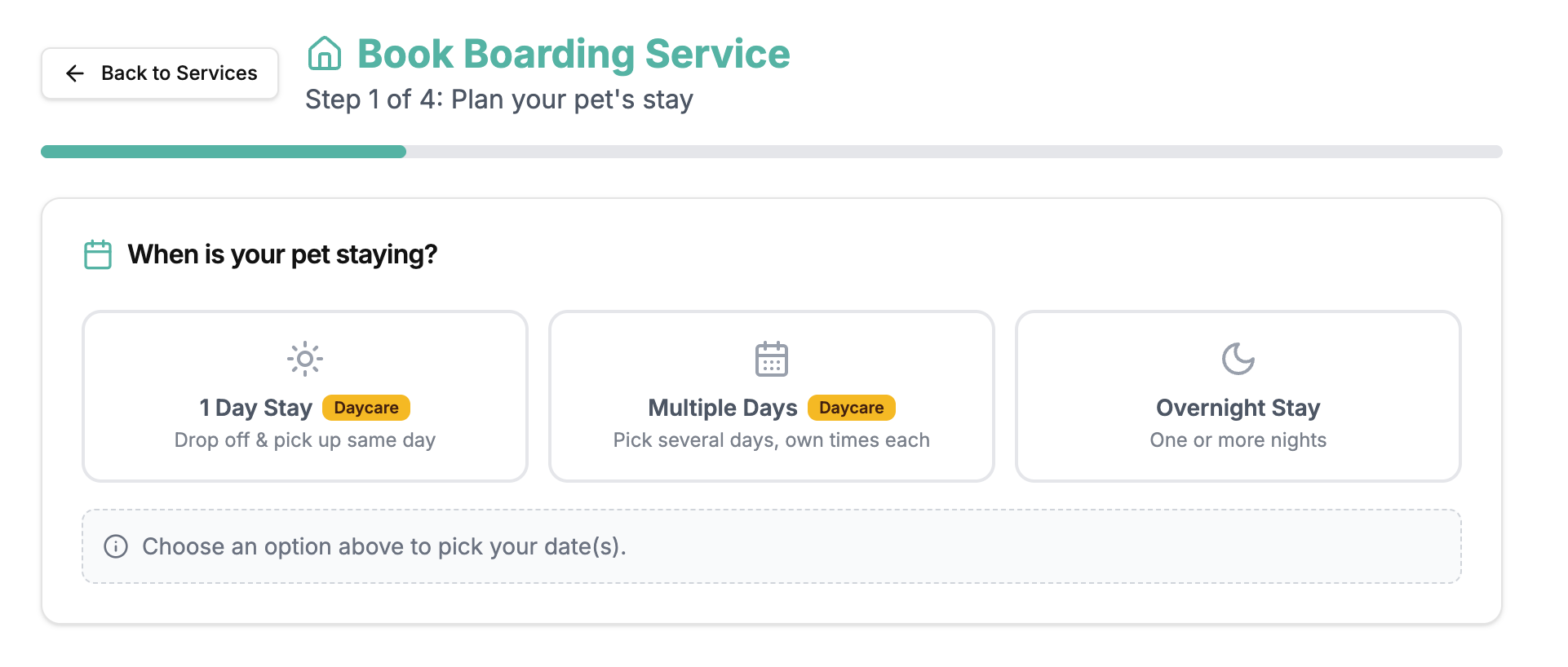
1. Chooses **Multiple Days** on the first step (shown next to *Single Day* and *Date Range*).
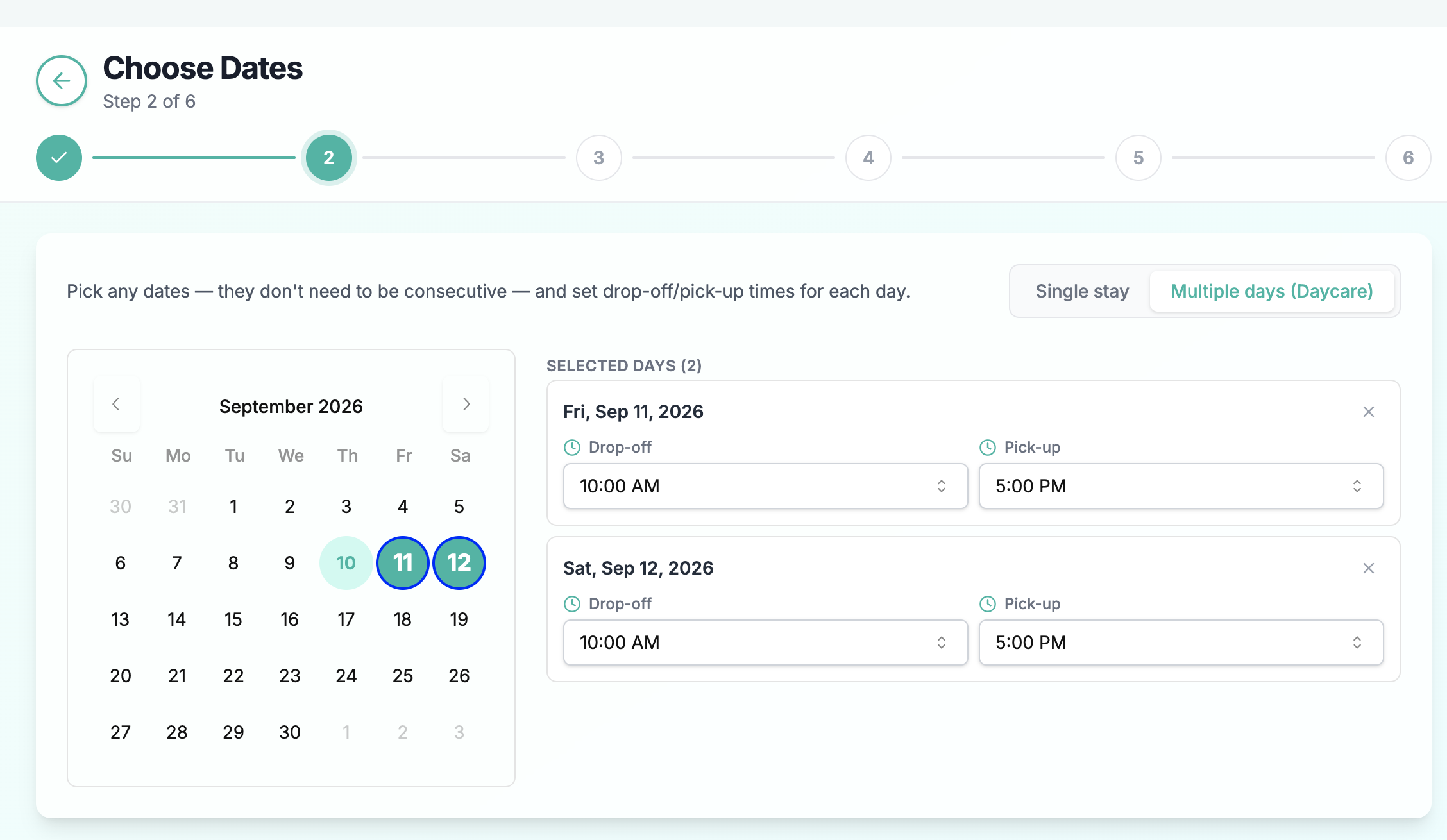
2. Taps the days they want on the calendar. Any combination is allowed — they don't need to be back-to-back.
3. Sets a **drop-off** and **pick-up** time for each selected day.
4. Adds their pet(s), any add-ons, and pays or submits a request — once, for all days.
####
#### If a day is fully booked
Availability is checked for **every** selected day, not just the first. If one day has no room free for the customer's pets, they'll see a message naming that exact day, for example:
> **Sep 12 is fully booked** We don't have a room for 2 pets on Sep 12, but your other selected days are still open.
They can tap **"Remove Sep 12, then continue"** to drop just that day and book the rest — no need to start over. If *every* selected day is full, they're prompted to pick different dates.
***
### Create a multi-day booking from the dashboard
Use this when you're booking on a customer's behalf.
1. Go to [**Boarding → New Booking**](https://www.gopetai.com/dashboard/boarding/bookings/new).
2. On the **Choose Dates** step, switch the mode to **Multiple days (Daycare)**.
3. Select the days on the calendar and set **drop-off / pick-up times** for each.
4. Continue through the flow: pick the customer and pet(s), choose the room type, and assign pets to rooms **per day**.
5. Review and create. The booking is saved as one group with a single invoice.
***
### Approving a multi-day booking request
When a customer submits a multi-day request (e.g. "Pay at drop-off"), it appears as **one request** in **Boarding → Booking Requests**.
In the review dialog you can:
* see every selected day with its times and price
* adjust the **tip, coupon, and discount** for the whole booking
* **override the room number for any individual day**
#### Room assignment
Each day is auto-assigned an available room. In the review dialog's room section:
* occupied units are labelled **(Occupied)** so you don't double-book
* a free unit is pre-selected for you
* you can change any day's room independently
Approving the request generates one invoice covering all days.
* Rooms are only shared between pets that belong to the **same owner** in the **same booking**. Two different customers can never be placed in the same physical room unit on the same day.
***
### How multi-day bookings appear in operations
| Where | What you see |
| ------------------------------------------ | ------------------------------------------------------------------------ |
| **Today's / Upcoming / Current check-ins** | One card **per day**, so each visit can be checked in and out on its own |
| **Calendar** | Each day shown in its assigned room on that date |
| **Invoice** | A single invoice listing every day, plus add-ons, tip, and discount |
| **Booking Requests** | One request card for the whole group |
Add-ons, tips, and discounts are totalled correctly across all the days on the booking.
***
### FAQ
**Can the days be spread across different weeks or months?** Yes. There's no limit on how far apart the selected days can be.
**Can each day have a different drop-off/pick-up time?** Yes — times are set per day.
**Can a customer add or remove a day after booking?** Not from their side. Contact them or adjust the individual day bookings from your dashboard.
**What if only some days are available?** The customer can remove the unavailable day(s) in one tap and book the rest. Nothing is reserved until they complete the booking.
**Does this work for overnight boarding?** No. Multi-day scheduling is for per-day daycare pricing. Overnight stays use the single-stay or date-range flow.